Toll-Free: 1-866-423-8525 I sales@clienttrackportal.com
Toll-Free: 1-866-423-8525 I sales@clienttrackportal.com
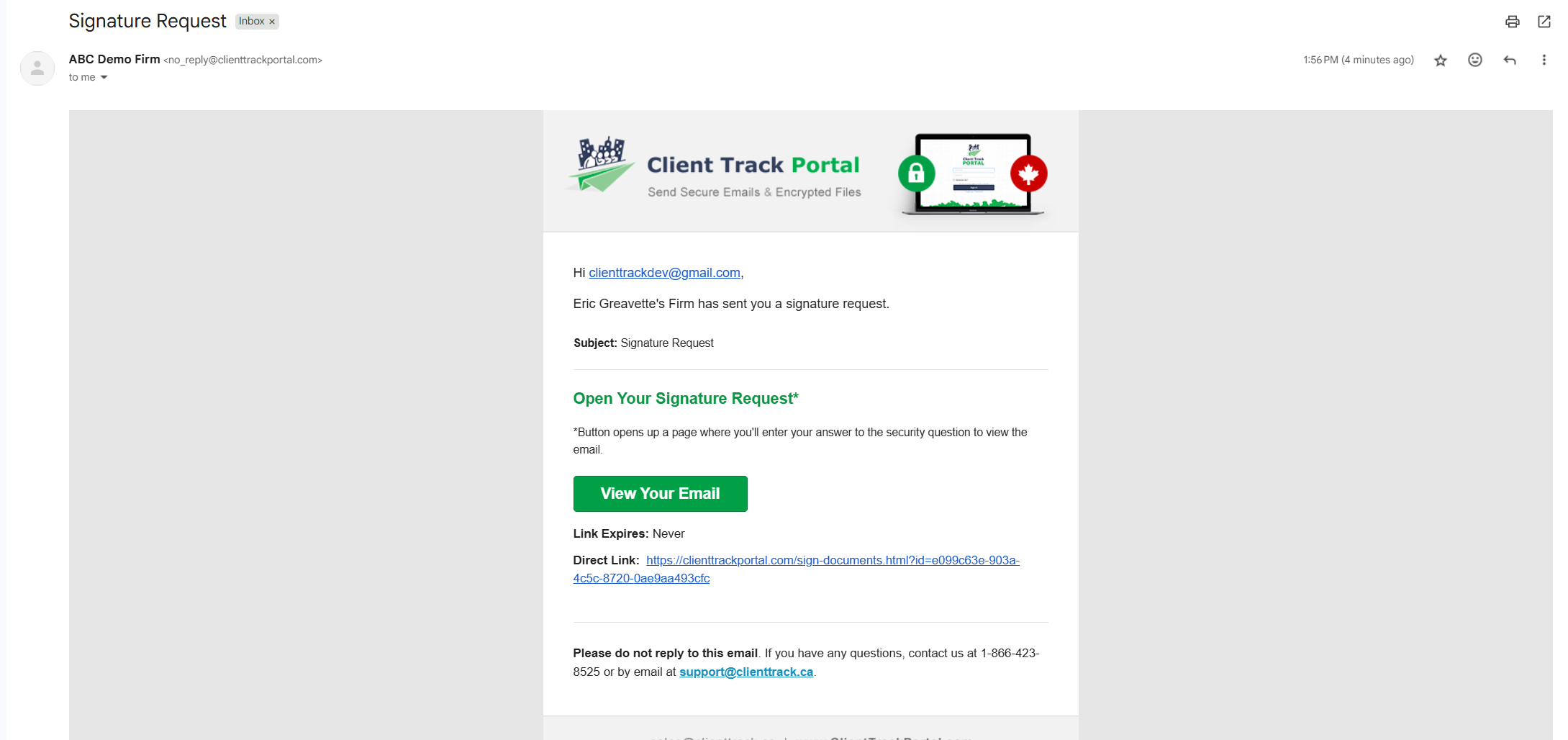
Locate the email that was sent to you and click the View Your Email button inside the message.
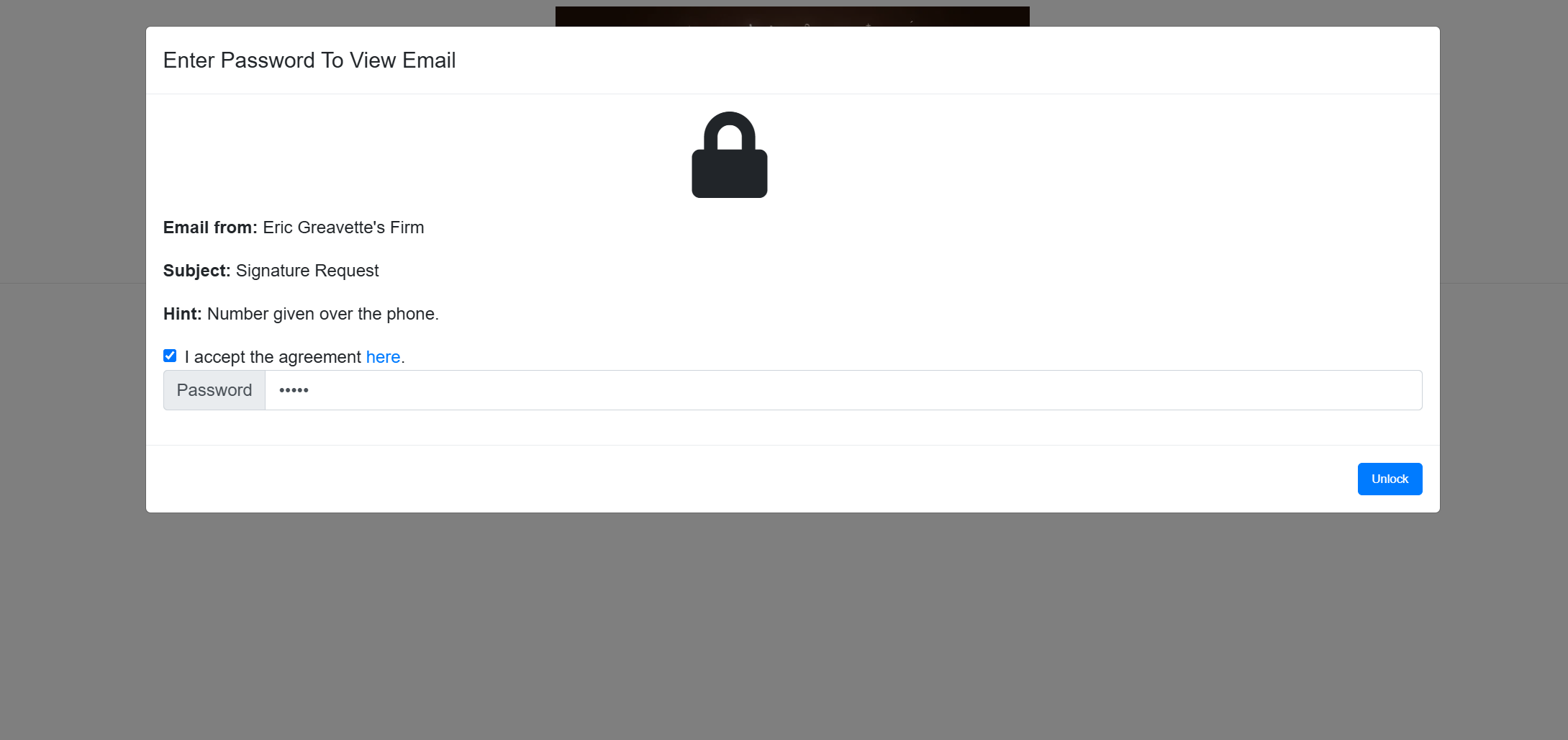
Agree to the terms of service, then enter the password provided to you by your sender. Once entered, click Unlock.
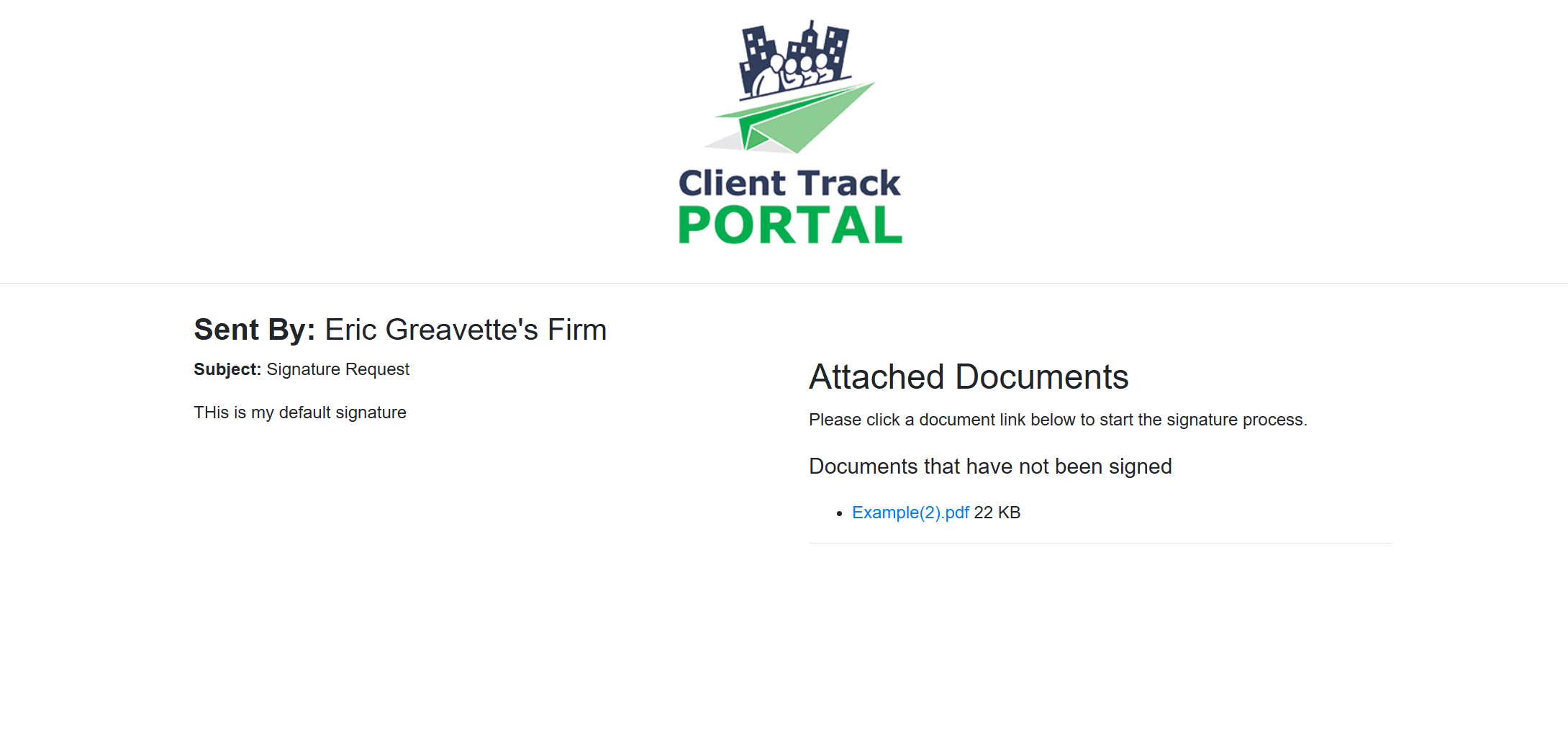
Under the Unsigned Documents heading, click the document you want to sign.
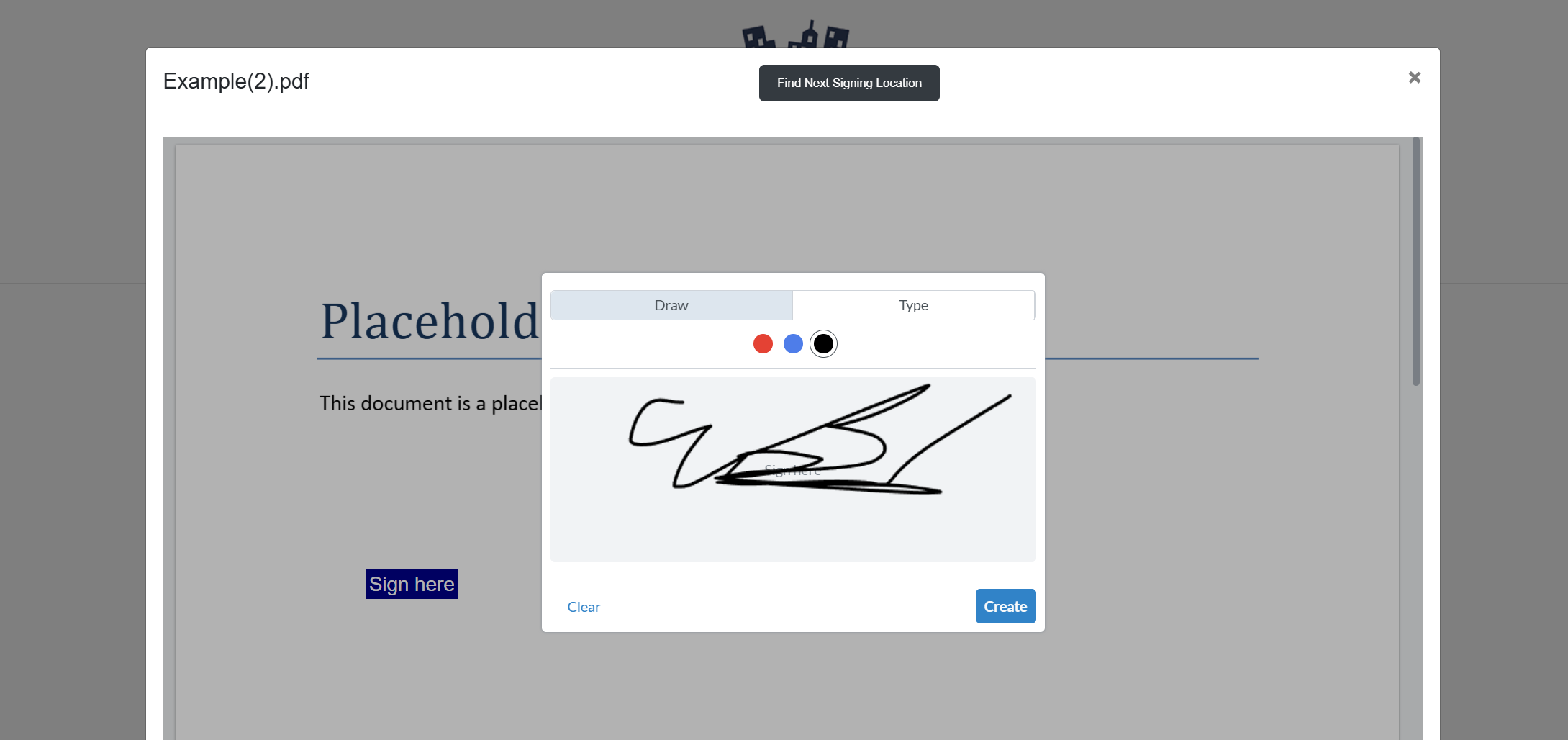
You can either scroll or use the Find Next Signing Location button to locate signature fields. Click Sign Here to open the input and choose to draw or type your signature.
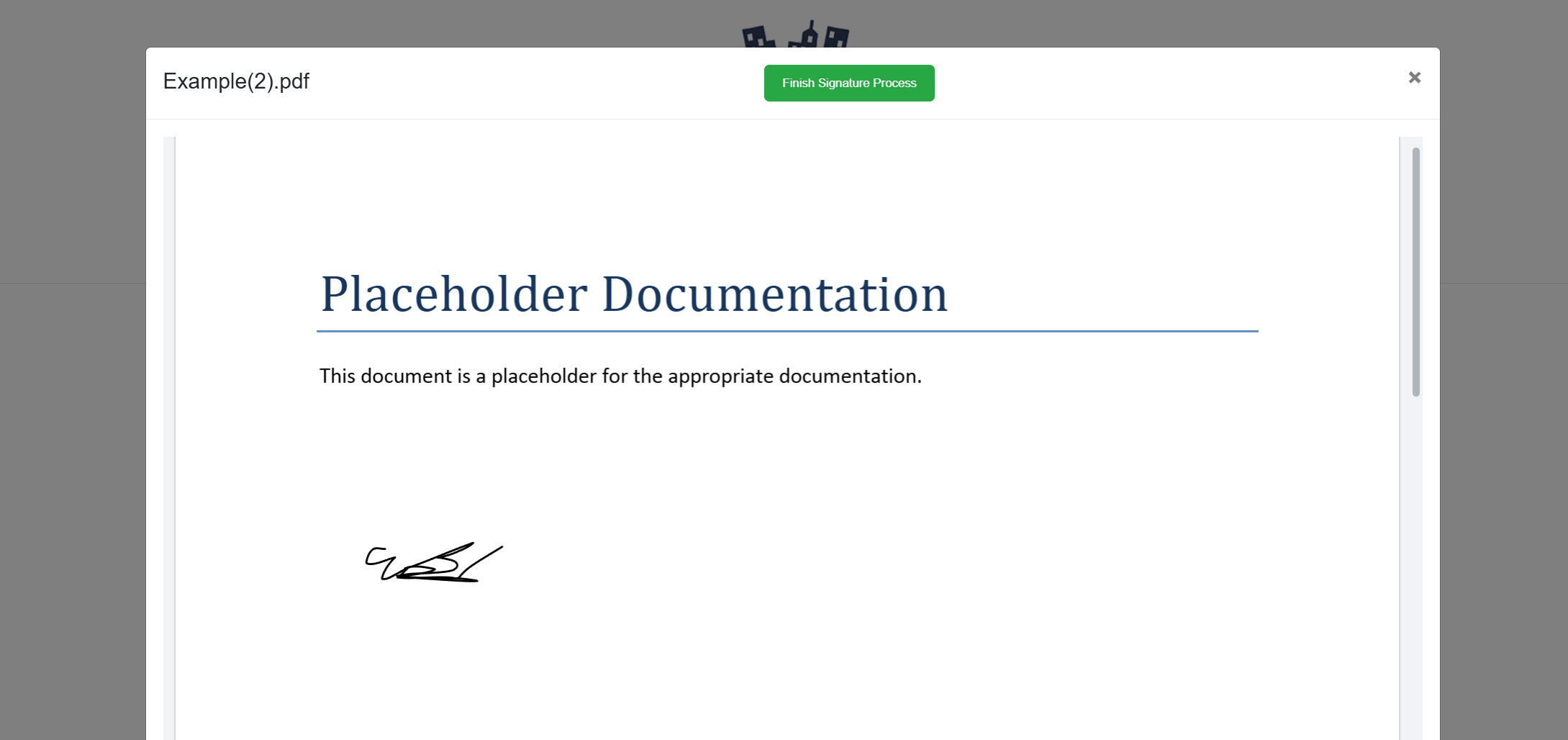
After all fields are completed, the top bar will turn green. Click the Finish Signature Process button to complete signing.
If there are more documents, repeat Steps 3 to 5 until everything is signed.
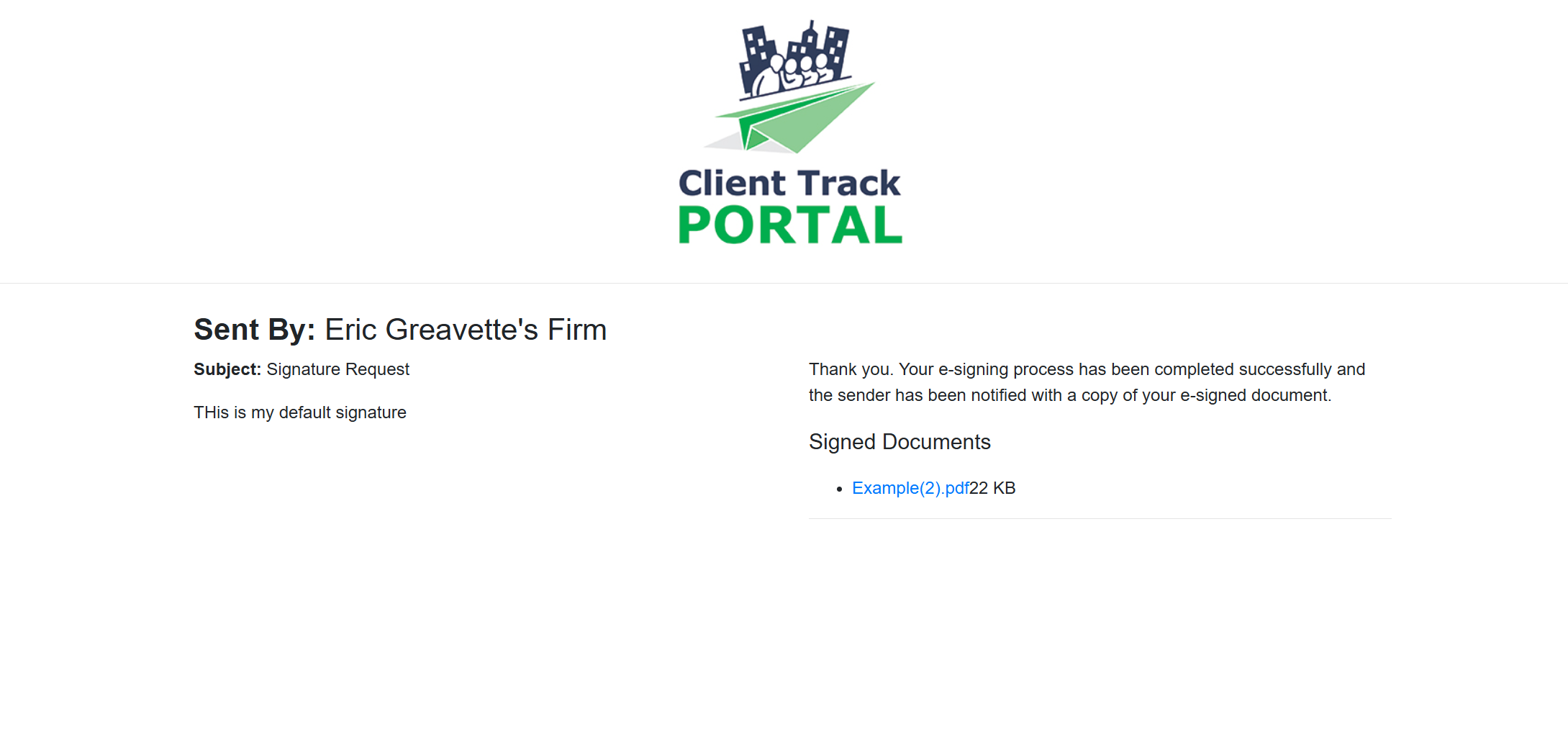
Once signed, you can find the file under the Signed Documents section. Click to download your completed document.